
Active and Idle Time Tracking Software
Measure how engaged your team is with a simple, honest signal: active, idle or offline. Activity is built from keyboard and mouse presence only, so you understand the workday without watching what people do.
Activity You Can Trust
A simple signal that is accurate, private and easy to act on.
Presence, not content
The agent knows that input happened. It never records what was typed, clicked or read.
An idle threshold per organization
No input for longer than the threshold counts as idle. The default is 5 minutes.
Active, idle and break time
Every punched-in day breaks down into active time, idle time and break time.
Three Clear States
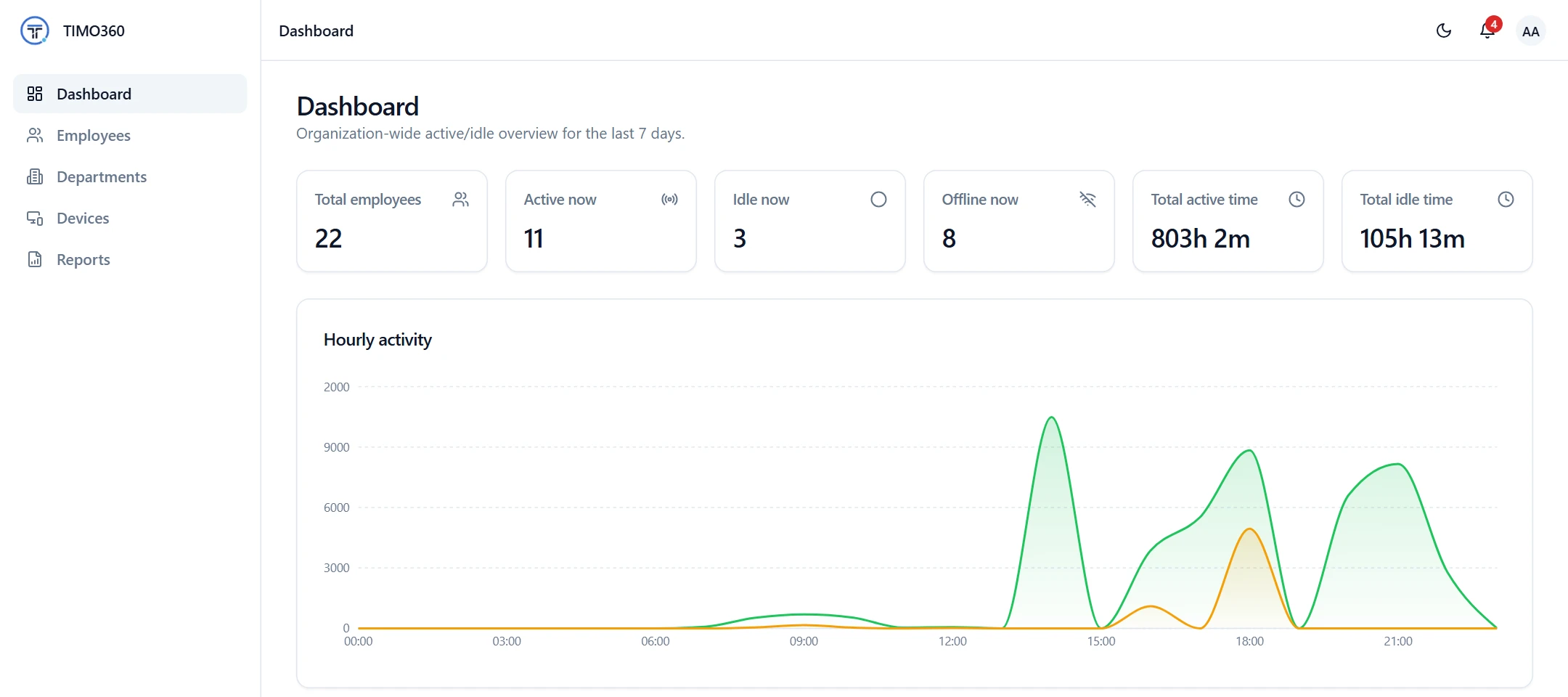
Every employee is shown as Active, Idle or Offline. Active means recent keyboard or mouse input was detected. Idle means no input for longer than your idle threshold. Offline means the device is not reporting.
- Active: recent keyboard or mouse input
- Idle: no input for longer than the threshold
- Offline: the device has stopped reporting
Set the Idle Threshold That Fits Your Team
The idle threshold decides how long without keyboard or mouse input counts as idle. It defaults to 5 minutes and can be set per organization anywhere from 30 seconds to 1 hour.
Breaks pause tracking, and meeting time counts as active, so neither is mistaken for idle time.
Idle threshold
Default
5 min
Minimum
30 sec
Maximum
1 hour
No keyboard or mouse input for longer than the threshold counts as idle. The threshold is set per organization.
Charts That Show When Your Team Is Active
The Hourly activity chart splits active and idle time by hour of day across the last 7 days. Each employee also has a Timeline of their day.
Active and Idle Time for Every Employee
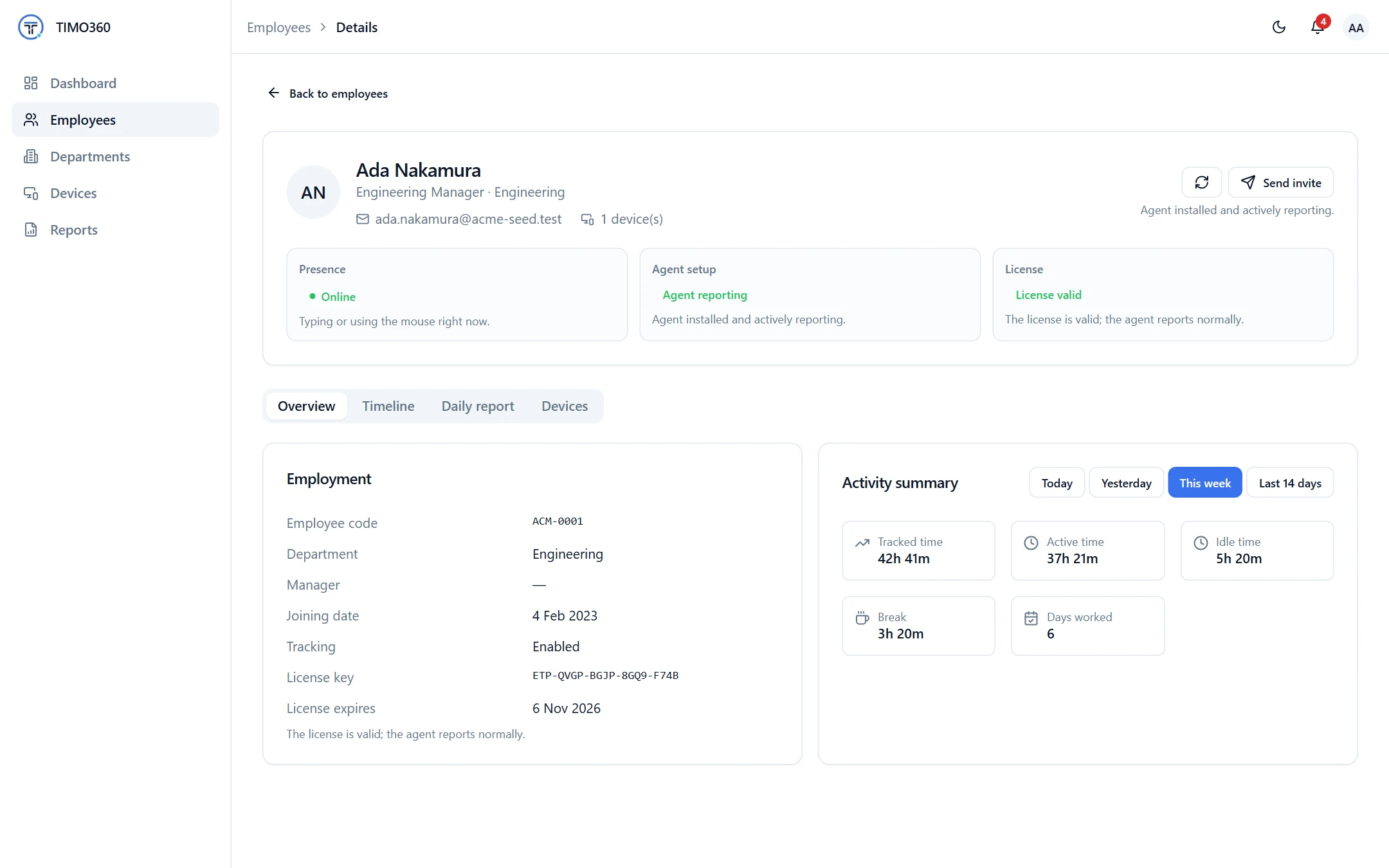
Open any employee to see an Activity summary with tracked time, active time, idle time and break. Reports show the same split for every employee, and the employee report adds the number of idle sessions.
More Features for Employee Monitoring
Alerts and Notifications
Administrators are notified when an employee has been idle for over 2 hours while punched in.
Notifications
Mark all readEmployee idle
[Employee] has been idle for over 2 hours.
Employee offline
[Employee] has been offline for over 2 hours.
Device not reporting
[Device] has not responded for over 2 hours.
Employee auto punched out
Punch session was still open past midnight and was automatically closed.
Reports and Exports
Working, idle, break and meeting time for every employee, exported as CSV, Excel or PDF.
FAQ
The desktop agent reads whether there has been keyboard or mouse input. If there has been none for longer than your organization's idle threshold, the employee is idle.