
How TIMO360 Employee Monitoring Works, From Install to First Report
TIMO360 is employee monitoring software built on presence signals instead of surveillance. A lightweight desktop agent notes who is punched in, active or idle, and managers follow it on a live dashboard, with no screenshots or keystroke logging. Here is the whole path, from inviting your team to reading your first report.
- No screenshots or keystroke logging
- Windows, macOS & Linux
- Per-employee pricing
Five Steps From Sign-Up to Your First Report
Setup happens once. After that, the agent runs in the background and your team works as usual.
- 1In the dashboard
Add Your Team
An administrator creates the organization and adds each employee. The platform emails every employee an invite with a single-use enrollment code and a link to download the desktop agent. Employees can be grouped into departments with an assigned manager.
- Resend an invite at any time from the employee's page
- Departments with a manager for each one
- Onboarding status shows who is invited, linked or reporting
Demo organization data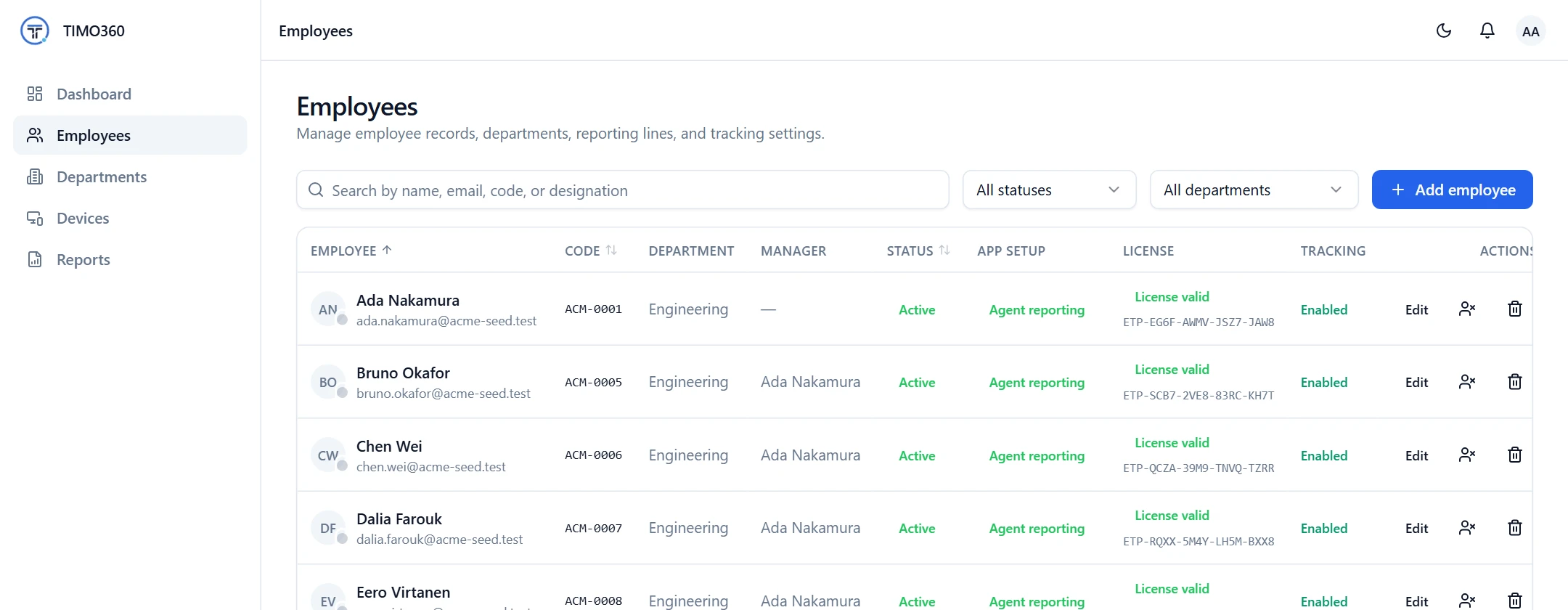
- 2On each computer
Install and Enroll the Desktop Agent
Each employee installs the lightweight desktop agent and enters the code from the invite email. A code works once and expires after 1 day. The agent checks for updates when it starts and installs them automatically, and administrators can revoke any device at any time.
- Supported: Windows: Windows 10 or later, 64-bit; macOS: macOS 12 Monterey or later, Apple silicon and Intel; Linux: Any x86_64 distribution with a desktop session
- A revoked device stops reporting and must be re-enrolled
- Every enrolled device is listed with its status and agent version
Demo organization data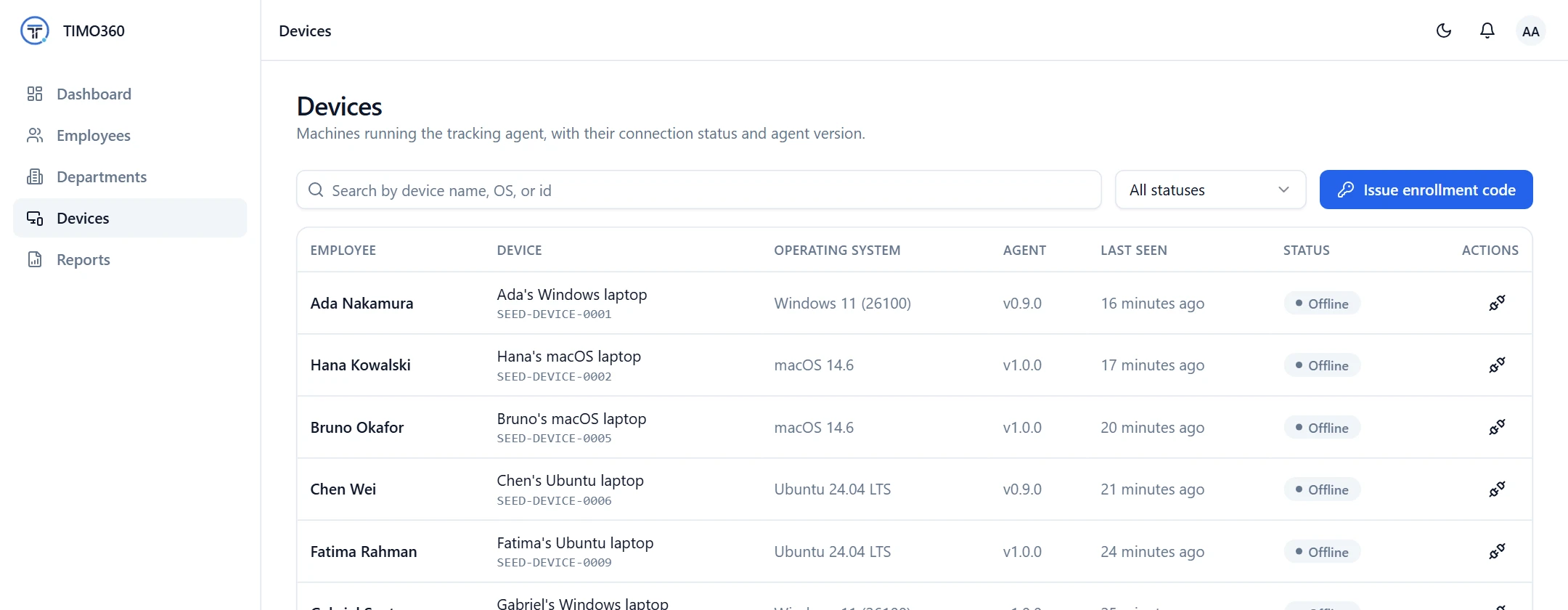
- 3Once a day
Employees Punch In and Work as Usual
Tracking runs only while an employee is punched in. Employees start and end their day from the agent, take breaks that pause tracking and mark meetings that count as active time. A session left open past local midnight is closed automatically, and administrators are notified.
- Breaks are never mistaken for idle time
- Meetings marked in the agent count as active time
- A daily report lists punch in, punch out, active, idle and break time
Demo organization data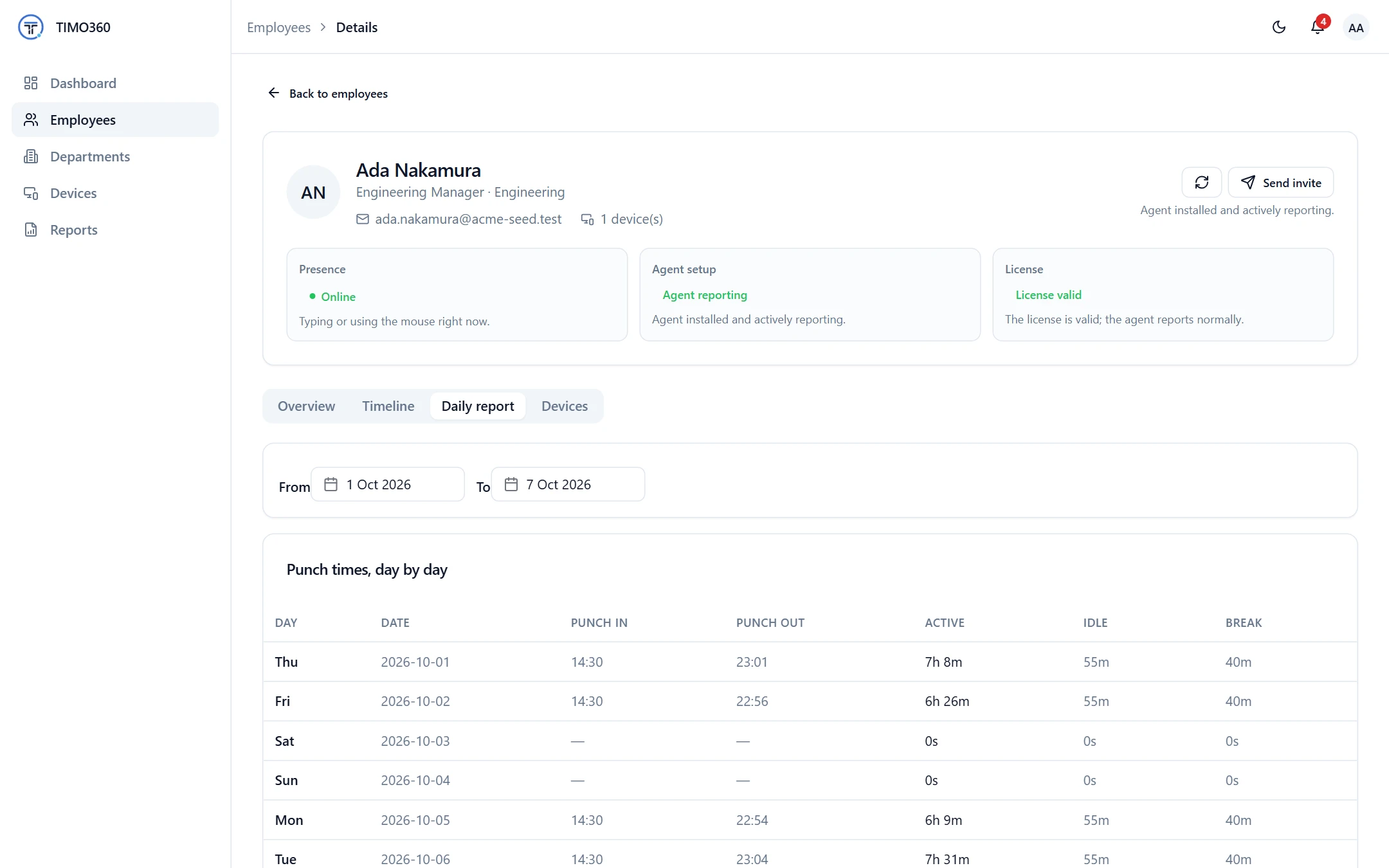
- 4In the background
The Agent Reports Presence, Not Content
While an employee is punched in, the agent notes whether keyboard or mouse input is happening as a simple yes or no, which application is in front and its window title text. It sends this to the dashboard in small batched heartbeats. When there has been no input for longer than your idle threshold, the device counts as idle.
- The idle threshold is set per organization, from 30 seconds up to an hour
- The agent never sees what was typed or clicked
- A device that stops responding shows as offline
Demo organization data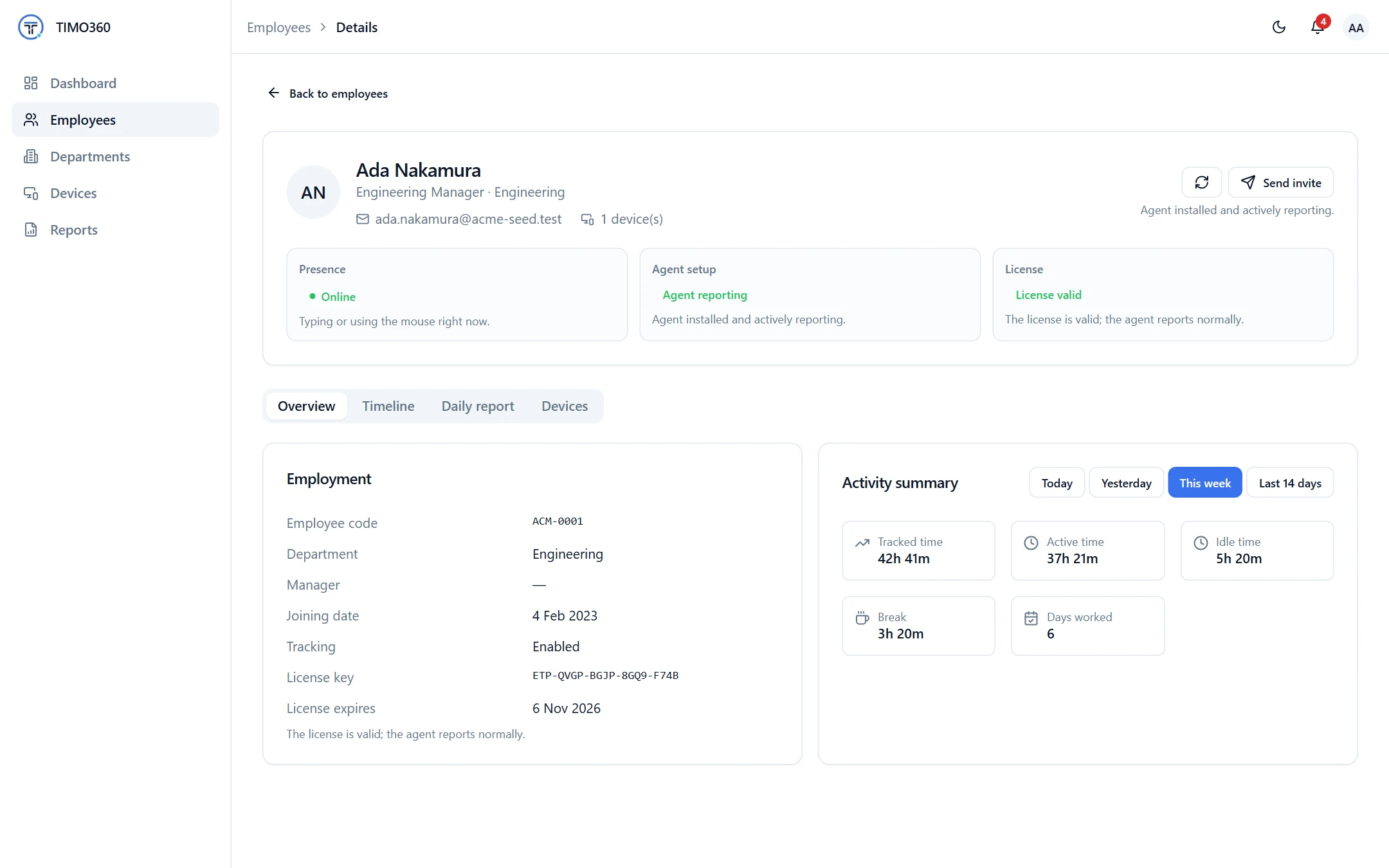
- 5For managers and admins
Review the Team, Reports and Alerts
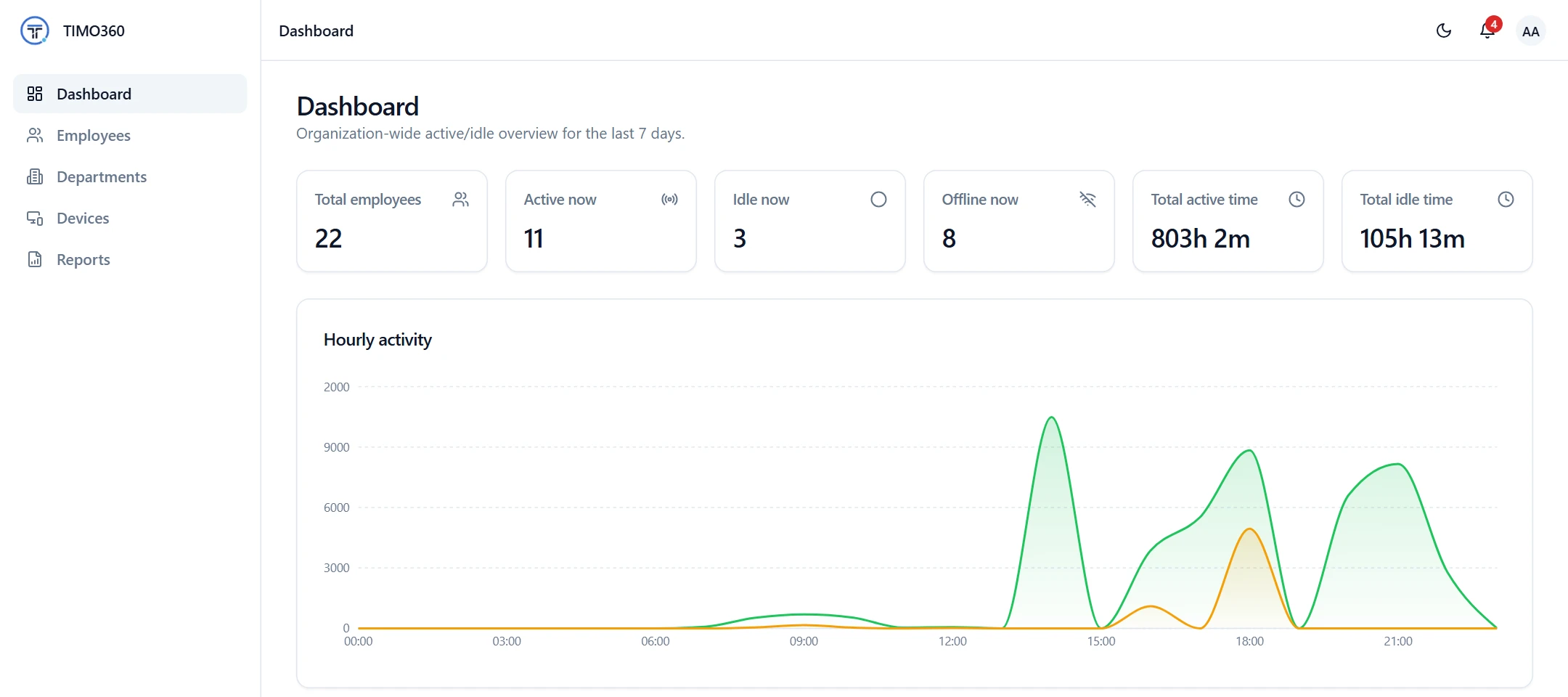
The dashboard shows how many employees are active, idle and offline right now, with a status table that refreshes automatically every 30 seconds. Daily, weekly and monthly reports export as CSV, Excel or PDF, and administrators get in-app alerts for long idle or offline periods, silent devices and automatic punch-outs.
- Reports for one employee or the whole organization, filtered by department
- Alerts appear in the dashboard as they are raised
- Employees see their own numbers in My Report
Demo organization data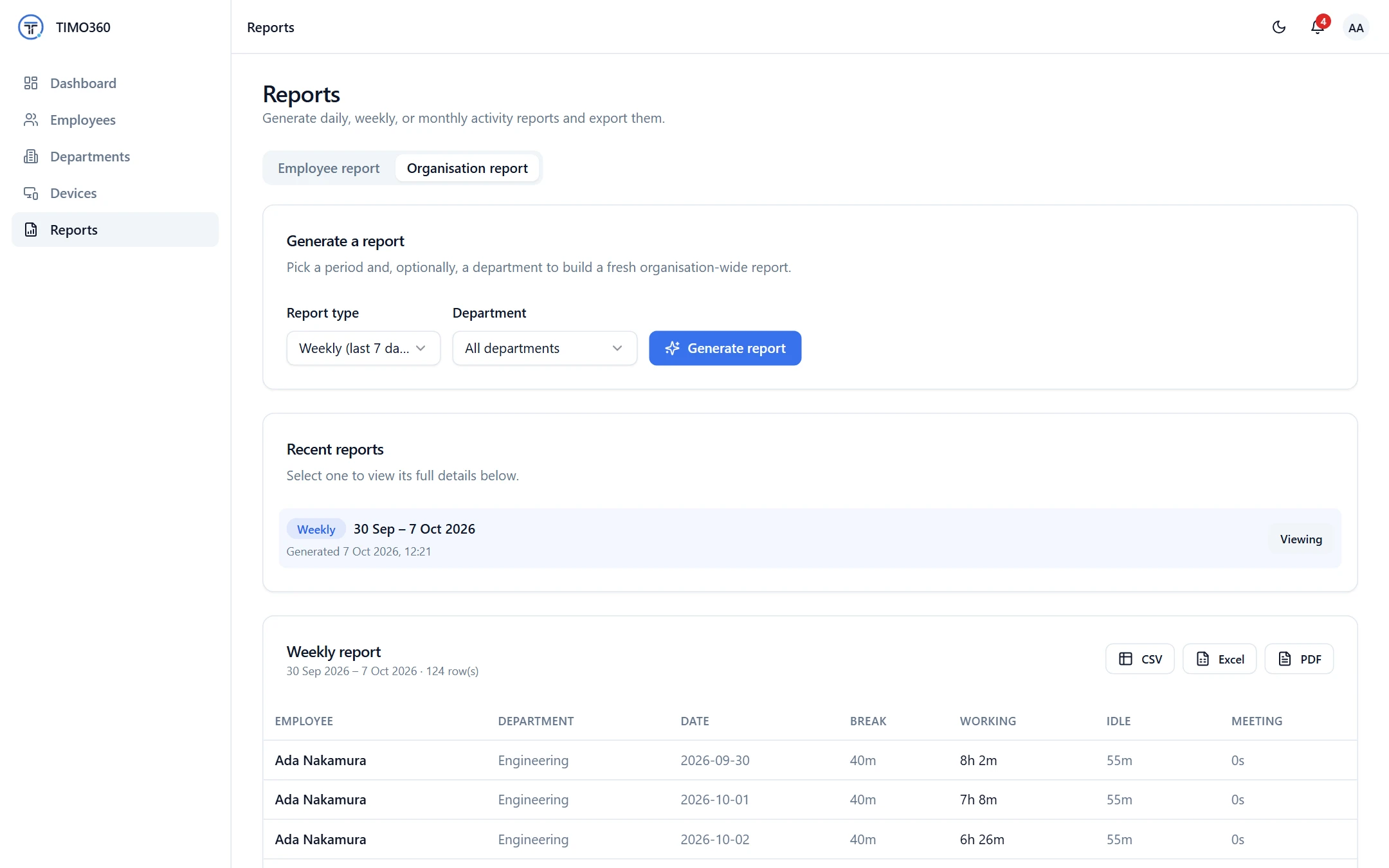
What Travels From the Agent to the Dashboard
Five presence signals, each with one purpose, and a short list of things that are never collected.
| Signal | What it is | Used for |
|---|---|---|
| Active application name | Which application is in the foreground. | Top applications in each employee's report |
| Window title text | The title of the active window as text only. In a browser, that is the name of the tab in front, never its address or content. | Context for what was worked on; on macOS each employee chooses whether to allow it |
| Keyboard and mouse activity | A yes or no signal that input is happening, never what was typed or clicked. | Active versus idle time |
| Punch, break and meeting times | The times employees record in the agent. | Attendance and working-time reports |
| Device details | Operating system, agent version and heartbeats. | Device health and fleet status |
Never collected
- Screenshots or screen recording
- Keystroke logging — never what you type
- Webcam or microphone capture
- Passwords, clipboard or form contents
- Full page URLs or query strings
- Message or document contents
Your organization remains responsible for telling employees how they are tracked and for complying with local law. Read the full privacy policy.
Who Sees What
Access follows the role, so each person sees what they need and nothing more. See roles and access control for the detail.
Organization administrators
Manage employees, devices, reports and settings with full access, or look without changing anything with view-only access.
Managers
See their direct reports and the departments they head, so each lead works with their own team's numbers.
Employees
See only their own data in My Report and Profile, including their top applications.
One Setup, Four Ways to Use It
The same agent and dashboard serve remote, hybrid and in-office teams. Pick the angle that matches your goal.
How It Works: Common Questions
More in the full FAQ.
How does employee monitoring software work?
A small desktop agent runs on each employee's computer. After the employee punches in, it detects whether keyboard or mouse input is happening, which application is in front and its window title text, and sends that to a central dashboard in batched heartbeats. Managers see live team status and reports built from those signals. TIMO360 works this way without screenshots, keystroke logging or webcam access.
Does the agent run all day or only during work?
Only while the employee is punched in. Employees start and end their day in the agent, and breaks pause tracking. Outside a punched-in session, nothing is tracked.
What does an administrator need to do to get started?
Create the organization, add employees in the dashboard and let the platform email each of them an invite. Each employee installs the agent and enters the single-use enrollment code from the invite. Codes expire after 1 day, and an invite can be resent from the employee's page.
How current is the information on the dashboard?
The employee status table refreshes automatically every 30 seconds while the agent reports in small batches. A device that stops responding is shown as offline, and administrators are notified if it stays silent for over 2 hours while its employee is punched in.
Can employees see what the agent records?
Yes. Every employee has a personal My Report with their own punch times, active and idle time and top applications, and the agent shows its connection status. Employees can only view their own data. Your organization remains responsible for explaining its tracking policy to staff.
Who can see an employee's data?
Organization administrators can see everyone, with full or view-only access. Managers see their direct reports and the departments they head. Employees see only their own data. Every record is scoped to a single organization.
Keep Reading
Ready for Attendance & Presence Tracking That Respects Your Team?
Set up your organization, install the agent, and start seeing attendance and presence data in minutes — without a single keystroke or screenshot recorded.