
Automatic Time Tracking Without Timers or Timesheets
Employees punch in from the desktop agent and TIMO360 does the rest: it records active and idle time, pauses for breaks, counts meetings as active time and closes forgotten sessions at midnight. Every day ends up as a clear record of punch times and of working, idle, break and meeting time.
- No screenshots or keystroke logging
- Windows, macOS & Linux
- Per-employee pricing
Why Time Tracking Is Hard to Get Right
The usual options fit most teams badly. Here is what gets in the way.
Manual timesheets drift
Hours typed in at the end of the week are approximate, and the gaps are filled with guesses.
Forgotten timers and punch-outs
A timer left running or a missing punch-out quietly inflates the numbers.
Breaks look like idle time
Without a break record, a long pause is indistinguishable from time away from the desk.
Long calls look inactive
A meeting with no keyboard or mouse input reads as idle unless it is recorded as one.
Time Tracking on Presence Signals, Not Surveillance
Punch in and out from the agent
One punch in and one punch out per employee per day. Tracking runs only while an employee is punched in, and the agent shows a shift summary afterwards that can be downloaded as an image.
Attendance trackingBreaks that pause tracking
Employees start and end breaks with an optional reason. Tracking pauses, and break time is recorded separately from idle time. There is no cap on break time.
Breaks and meetingsMeetings that count as active
Employees mark a meeting from the agent. That time counts as active even without keyboard or mouse input, and no application or window detail is recorded during it.
Breaks and meetingsForgotten punch-outs closed
A session still open past local midnight in your organization's timezone is closed automatically, open breaks and meetings are closed too, and administrators are notified.
Alerts and notificationsDay-wise reports
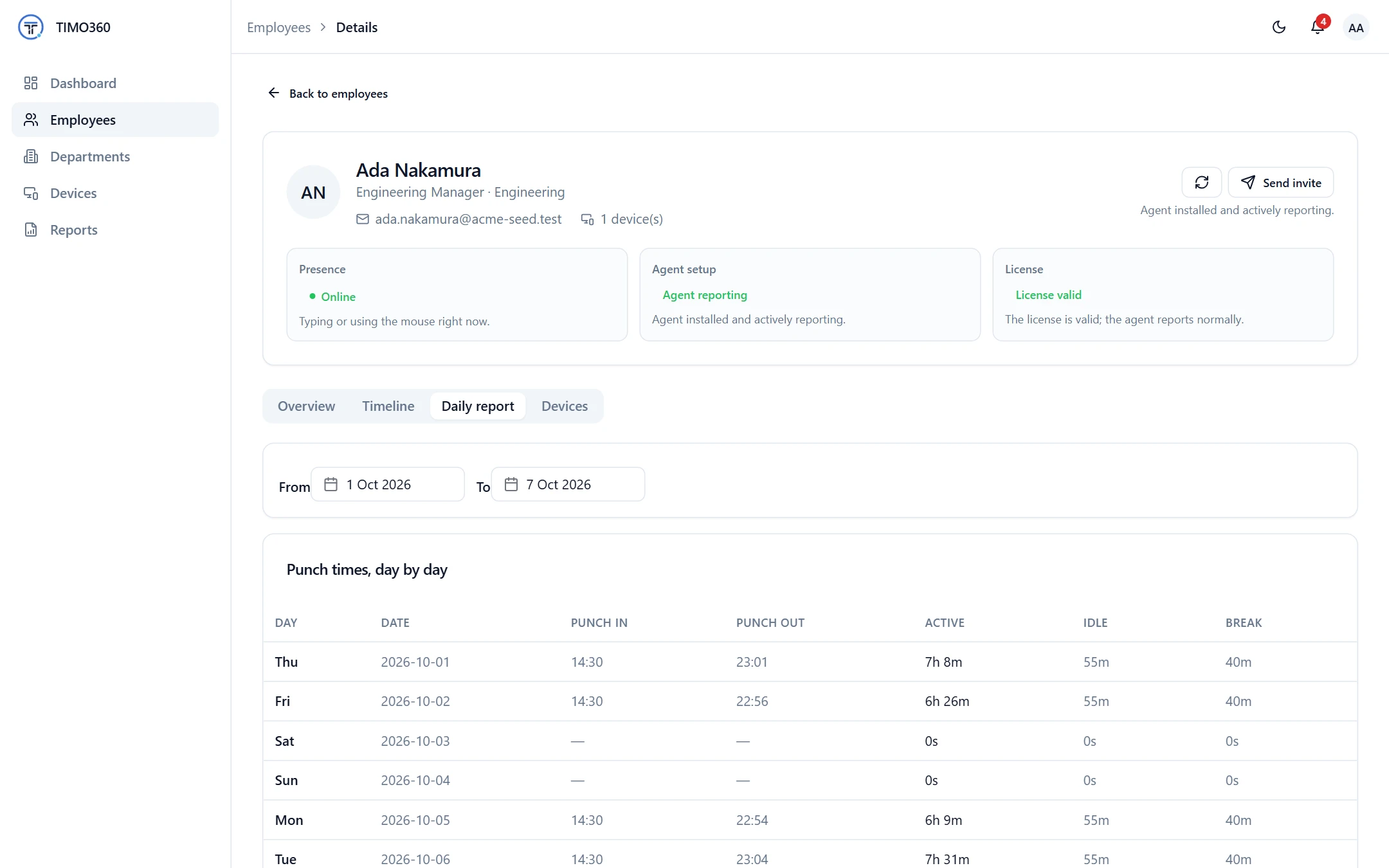
A daily report lists punch in, punch out, active, idle and break time for each day. Reports export as CSV, Excel or PDF.
Reports and exportsAutomatic, in the background
The agent runs quietly, can start at login and syncs about every 20 seconds, so there are no timers to remember and no entries to correct.
Automated time trackingHow It Works
From sign-up to your first report in three steps.
Punch in
The employee clicks Punch In in the desktop agent. Nothing is tracked before this.
Work as usual
The agent records active and idle time. Breaks pause it, and meetings count as active time.
Punch out and review
A shift summary appears in the agent, and the day lands in the employee's Daily report.
What It Does Not Do
Worth knowing before you decide.
- One punch in and out per employee per calendar day. There are no shift schedules, late or early detection, overtime or leave tracking.
- No project, task or client time tracking, and no billable-hour invoices.
- No payroll calculation. Reports give you the hours to take into payroll.
Exactly What Is Collected, and What Never Is
Collected
- The active application name and process ID
- Window title text, as text only and never page content
- A yes/no keyboard and mouse activity signal
- Punch in/out, break and meeting times recorded in the agent
- Device details such as OS version and agent heartbeats
Never collected
- Screenshots or screen recording
- Keystroke logging — never what you type
- Webcam or microphone capture
- Passwords, clipboard or form contents
- Full page URLs or query strings
- Message or document contents
Your organization remains responsible for telling employees how they are tracked and for complying with local law. Read the full privacy policy.
Time Tracking Questions
More in the full FAQ.
Do employees have to start and stop timers?
No. Employees punch in once, and the desktop agent records active and idle time automatically until they punch out or go on a break.
Can an employee punch in again after punching out?
Not on the same day. Punching out marks the day's session complete, and they punch in again the next day.
What happens if someone forgets to punch out?
A session still open past local midnight is closed automatically, and administrators receive an Employee auto punched out notification.
Does TIMO360 track time per project or client?
No. It reports attendance, active and idle time, breaks and meetings. It does not track time by project or client and does not produce billable-hour invoices.
How are breaks and meetings handled?
Breaks pause tracking and are recorded separately, so they never appear as idle time. Meetings are marked from the agent and count as active time.
Other Solutions
Ready for Attendance & Presence Tracking That Respects Your Team?
Set up your organization, install the agent, and start seeing attendance and presence data in minutes — without a single keystroke or screenshot recorded.