
Real-Time Employee Monitoring Dashboard
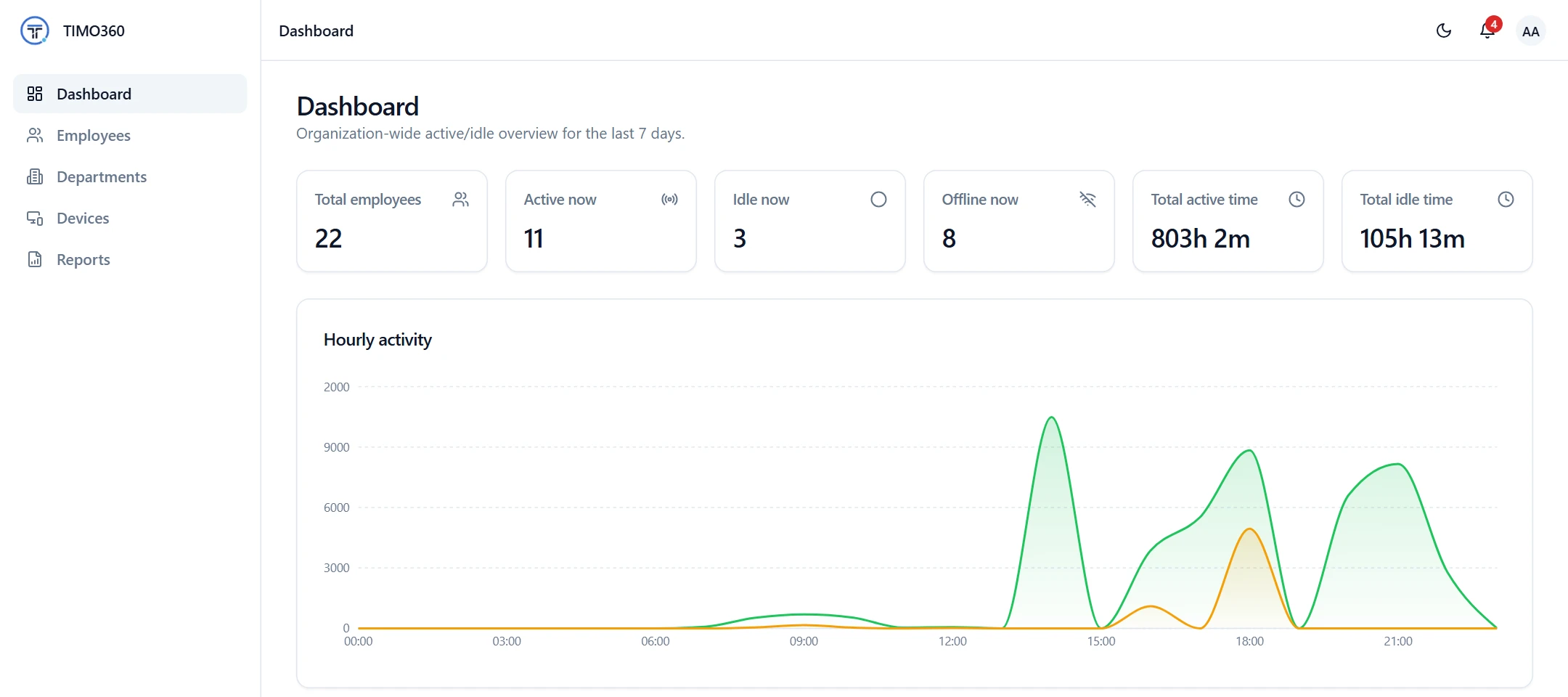
Know who is working right now. The dashboard shows how many people are active, idle or offline, and its employee status table refreshes automatically every 30 seconds, so you always have a current picture.
Real-Time Monitoring Benefits
A clear view of your team, without asking anyone for an update.
Live counts at a glance
Total employees, Active now, Idle now and Offline now, plus total active and idle time.
Hourly activity
An Active vs Idle chart by hour of day shows when your team is most engaged.
Notifications for admins
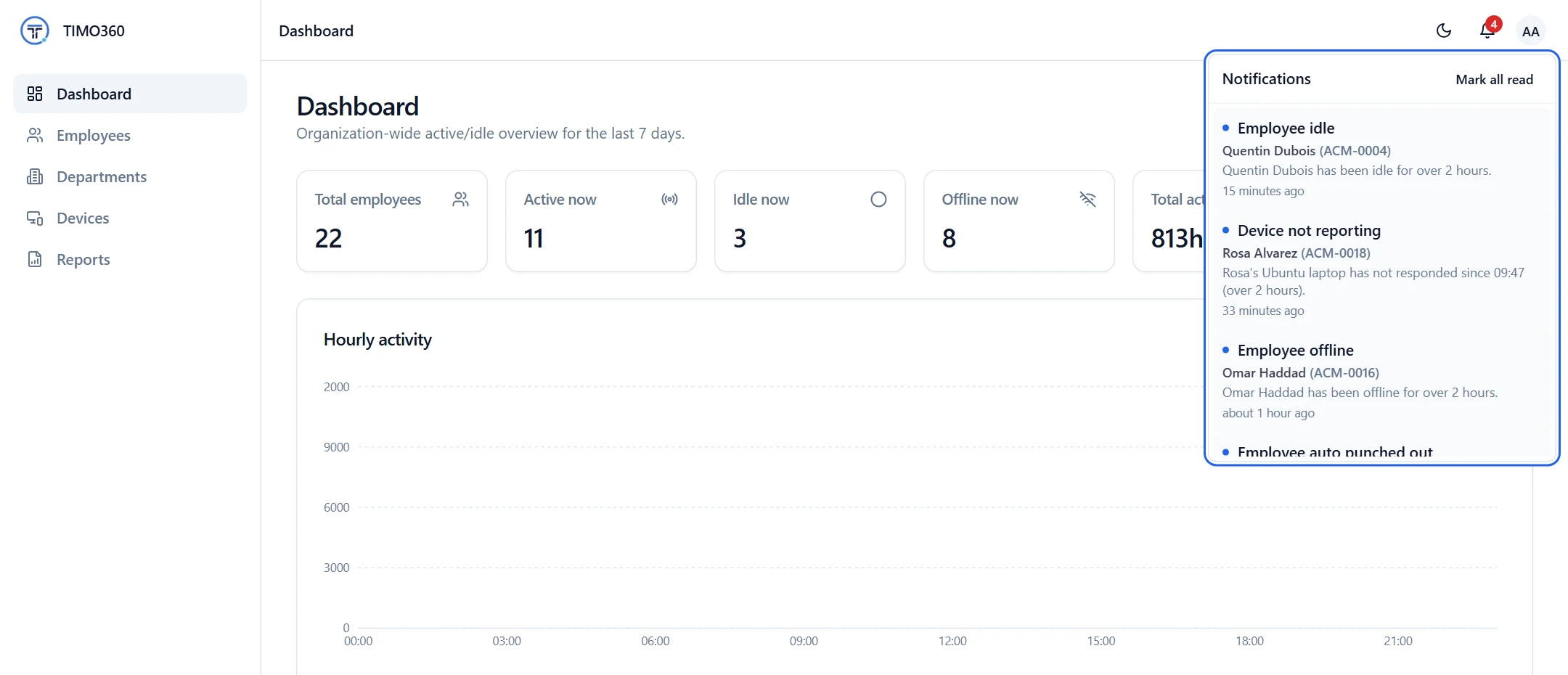
Administrators are alerted when someone has been idle or offline for over 2 hours, or a device stops reporting.
An Employee Status Table That Stays Current
Every employee is listed with their status (Active, Idle or Offline), their active time, their idle time and when they were last active. The table refreshes on its own every 30 seconds.
The desktop agent sends a heartbeat roughly every 20 seconds, and a device that stops responding for two minutes shows as offline.
- Status: Active, Idle or Offline
- Active time and idle time for the period
- Last activity for each employee
See When Your Team Is Most Active
The Hourly activity chart splits active and idle time by hour of day across the last 7 days, so you can spot busy periods and quiet ones.
Activity comes from keyboard and mouse presence only. The platform never records what was typed.
Hourly activity
Active and idle time by hour of day
Notifications Where You Need Them
Administrators get a Notifications bell in the dashboard. Notifications are raised when an employee has been idle or offline for over 2 hours while punched in, when a device has not responded for over 2 hours, and when a session is automatically closed past midnight.
Each problem is raised once, so the same outage does not flood your list.
Drill Into Any Employee
Open an employee to see their Overview, Timeline, Daily report and Devices. The activity summary shows tracked time, active time, idle time, break, and punch in and out.
Tracked time
Active time
Idle time
Break
Punch in
Punch out
More Features for Employee Monitoring
Attendance
Punch in and out from the desktop agent, with a timeline of each day.
Timeline
- Punched in
- Break started
- Break ended
- Meeting started
- Meeting ended
- Punched out
Activity Level Tracking
Active, idle and break time for every employee, from presence only.
Activity summary
FAQ
No. The platform never captures screens, screenshots, audio or webcam. You see each employee's status, active time and idle time instead.